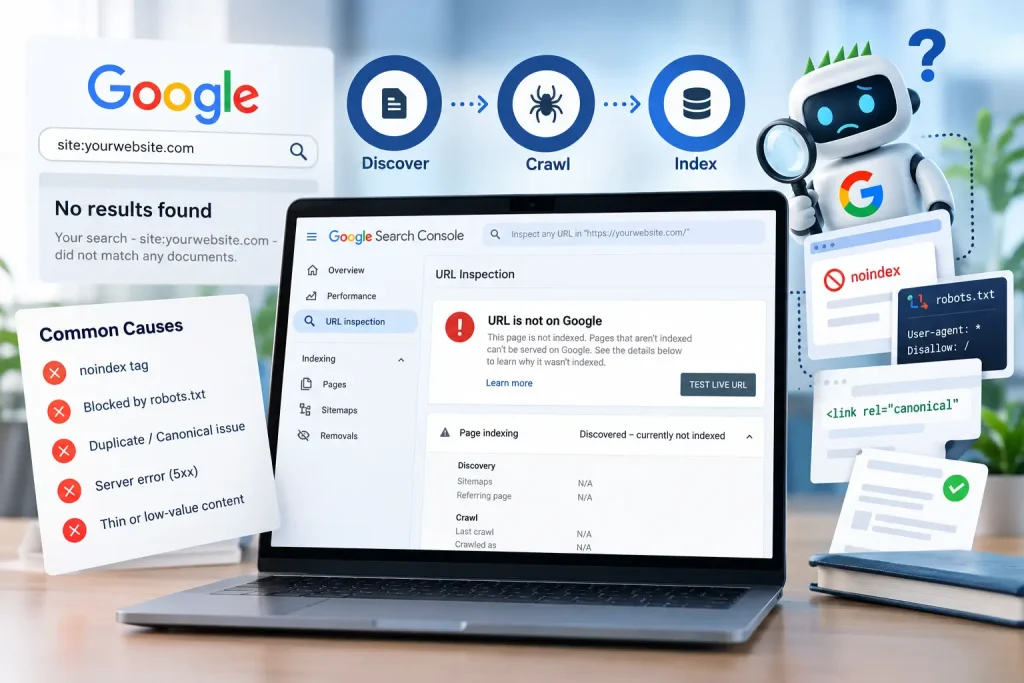
You publish a new blog post, service page, or product page, but it never appears in Google Search. You check your website, and everything looks fine. So why Google is not indexing your pages?
Google may not index a page because it cannot discover or crawl it, the page contains a noindex directive, a technical issue prevents access, Google selects another URL as canonical, or the content does not provide enough unique value to merit indexing. The right solution depends on the specific reason—not simply submitting the URL again.
In this guide, you’ll learn how to diagnose indexing problems step by step using Google Search Console and practical technical SEO checks. Whether you manage a WordPress website, Shopify store, WooCommerce site, or custom-built website, these steps will help you identify the cause and decide what to fix first.
Quick Answer: How to Fix Google Indexing Problems
If Google is not indexing your pages, follow this troubleshooting checklist:
- Inspect the affected URL in Google Search Console.
- Identify the exact Page Indexing status and last crawl date.
- Check whether Google can access the page and whether indexing is allowed.
- Review
robots.txt,noindexdirectives, HTTP status codes, and canonical tags. - Check your XML sitemap and internal links.
- Improve thin, duplicated, or unhelpful content where necessary.
- Fix the underlying issue, test the live URL, and request indexing when appropriate.
- Monitor the result and confirm whether Google has indexed the correct canonical URL.
Google does not guarantee that every page will be indexed, even when a page is accessible and technically eligible. The goal is to make important pages discoverable, accessible, useful, and eligible for indexing.
1. Understand the Difference Between Crawling and Indexing
Before fixing an indexing problem, understand the three stages involved in how a page can appear in Google Search.
Discovery
Google discovers a URL through internal links, external links, XML sitemaps, or other sources.
Crawling
Googlebot accesses the URL and retrieves its content, provided it can reach the page and crawling is permitted.
Indexing
Google processes the page and decides whether to include it in its search index and which URL should represent the content.
These stages are related, but they are not interchangeable. A discovered URL may not have been crawled, a crawled page may not be indexed, and an indexed page is not guaranteed to rank prominently in search results.
For example, if Google reports “Discovered – currently not indexed,” it knows about the URL but has not indexed it. If it reports “Crawled – currently not indexed,” Google has crawled the page but has not included it in the index at that time.
Each status requires a different investigation.
2. Step One: Check the URL in Google Search Console
The first step is to identify what Google knows about the affected page. Avoid making technical changes based only on assumptions.
How to Inspect a URL
- Open Google Search Console.
- Select the correct website property.
- Paste the complete page URL into the URL Inspection field at the top.
- Review the indexing verdict and Page Indexing details.
- Check the last crawl date, crawl permission, indexing permission, page fetch status, and Google-selected canonical.
- If appropriate, select Test Live URL to check the page as Google can access it now.
The URL Inspection tool provides information about Google’s indexed version of a URL and lets you test the live version. The live test does not reproduce every aspect of Google’s indexing systems, so use it alongside the Page Indexing report.
What Should You Look For?
| Search Console Finding | What It May Mean | Next Action |
|---|---|---|
| URL is not on Google | The page is not currently indexed | Review the indexing details |
| Discovered – currently not indexed | Google knows the URL but has not indexed it | Check internal links, content value, and crawl accessibility |
| Crawled – currently not indexed | Google crawled the page but did not index it | Investigate content quality, duplication, and canonical signals |
Excluded by noindex | A directive tells Google not to index the page | Remove it if indexing is intended |
| Blocked by robots.txt | A robots rule prevents crawling | Review the rule and unblock the URL if appropriate |
| Duplicate or alternate page | Google may be indexing a different canonical URL | Inspect canonical signals and page similarity |
| Server error (5xx) | Google encountered a server-side problem | Investigate hosting, server logs, and response stability |
| Not found (404) | The URL does not return a valid page | Restore it, redirect it where appropriate, or leave the 404 if it should be removed |
Treat these statuses as diagnostic clues, not automatic instructions to change every affected URL. Some pages—such as intentionally excluded filter URLs or redirected pages—should not be indexed.
3. Step Two: Check Whether Your Page Is Blocked by noindex
A noindex directive tells search engines that they should not include a page in their search results. It can appear in an HTML meta tag or an HTTP response header.
This is a common issue to investigate after website redesigns, staging migrations, plugin changes, and CMS configuration updates.
How to Check for a noindex Tag
Inspect the page’s source code and look for a directive similar to this:
<meta name="robots" content="noindex">You may also encounter:
<meta name="googlebot" content="noindex">An HTTP response can also include an X-Robots-Tag: noindex header.
If the page should be indexed, identify where the directive originates and remove it appropriately. On WordPress, check your SEO plugin, page-level settings, and site-wide search visibility settings. On Shopify or another CMS, inspect the relevant theme, template, app, or page configuration.
Important: Do not remove noindex from every page indiscriminately. Login pages, private pages, and certain utility URLs may be intentionally excluded. Also, blocking a URL in robots.txt can prevent Google from seeing a noindex directive, so these controls must be configured correctly.
4. Step Three: Review Your robots.txt File
Your robots.txt file contains rules that guide compliant crawlers about which parts of a website they may access.
An incorrect rule can prevent Googlebot from crawling important pages or resources.
For example:
User-agent: *
Disallow: /services/
This rule tells compliant crawlers not to crawl URLs under /services/. If your service pages should appear in Google, the rule may be a problem.
How to Troubleshoot It
- Visit
https://yourdomain.com/robots.txt, replacing the example domain with your own. - Review the rules applying to Googlebot.
- Check whether the affected URL falls under a disallowed path.
- Review any recent changes made during development or migration.
- Correct the rule if it unintentionally blocks important pages.
- Recheck the live URL in Search Console.
Remember that robots.txt is a crawling control, not a reliable method for removing URLs from Google’s index. A blocked URL can sometimes still be indexed based on information discovered elsewhere.
5. Step Four: Verify HTTP Status Codes and Server Accessibility
Google needs to retrieve a page successfully to process its content. If the server returns an error, redirects unexpectedly, or requires authentication, indexing may be affected.
Common responses include:
- 200 OK: The server successfully returned the page.
- 301 or 302 redirect: The URL redirects to another destination.
- 404 Not Found: The requested page could not be found.
- 5xx server error: The server encountered a problem handling the request.
A 200 response is helpful, but it does not guarantee that a page will be indexed. Likewise, a redirect is not automatically an error: a permanent redirect is appropriate when a page has genuinely moved.
What Should You Investigate?
Check whether the affected page loads without requiring a login, whether redirects lead to the intended destination, and whether the server consistently responds to requests.
For WordPress and WooCommerce websites, investigate hosting errors, caching, security plugins, and problematic rewrite rules where relevant. For large or frequently updated websites, server logs can help establish whether Googlebot has been encountering repeated failures.
If the problem involves intermittent 5xx responses, work with your hosting provider or developer to identify the underlying cause instead of repeatedly requesting indexing.
6. Step Five: Check Canonical Tags and Duplicate URLs
Canonicalisation helps Google determine which URL should represent a group of duplicate or substantially similar pages.
For example, an ecommerce store might expose several URLs for the same product because of tracking parameters, sorting options, or product variations.
Your page may contain a canonical tag such as:
<link rel="canonical" href="https://example.com/preferred-page/">The URL in this tag indicates the preferred version, but it is a signal rather than an absolute guarantee that Google will select that URL.
How to Diagnose Canonical Problems
- Inspect the affected URL in Google Search Console.
- Find the user-declared canonical and Google-selected canonical, where available.
- Confirm that the preferred URL returns the correct page.
- Check for conflicting canonical tags, redirects, and internal links.
- Ensure your sitemap references the preferred URLs you want indexed.
- Review whether the pages are genuinely distinct or mostly duplicate content.
If Google selects another canonical URL, determine whether that choice is reasonable. If the wrong page is selected, correct the technical signals and improve the distinctiveness of the pages where needed.
Example: Ecommerce Duplicate URLs
Imagine your store has these URLs:
/products/blue-shirt/products/blue-shirt?variant=123/collections/shirts/products/blue-shirt
If these URLs serve substantially the same product content, review whether your platform generates consistent canonical signals and whether internal links favour the preferred URL.
Do not force every URL to be indexed. Filter combinations, tracking URLs, and duplicate variants may not need independent search listings.
7. Step Six: Make Sure Google Can Discover the Page
Sometimes a page is technically accessible but difficult for Google to discover through the site’s link structure.
This can happen when a new service page is published without being linked from relevant pages, or when a product category is several clicks away from useful navigation.
Improve Internal Linking
Link to important pages from relevant locations, such as:
- Main navigation or service overview pages
- Relevant blog posts
- Parent category or collection pages
- Related product pages
- Useful contextual links within existing content
Use descriptive anchor text that explains the destination naturally. Avoid adding excessive links solely to influence rankings.
A logical site structure helps users navigate your website and helps search engines discover relationships between pages. Google’s documentation also recommends crawlable links and useful sitemap information to support URL discovery.
8. Step Seven: Check Your XML Sitemap
An XML sitemap helps search engines discover important URLs, particularly on larger websites or sites with complicated structures.
For example, a sitemap URL might look like:
https://example.com/sitemap_index.xml
The actual location depends on your CMS and sitemap configuration.
Sitemap Troubleshooting Checklist
- Confirm that the sitemap URL loads successfully.
- Submit the correct sitemap in Google Search Console.
- Include the preferred, canonical URLs you want Google to discover.
- Remove URLs that redirect, return errors, or should not be indexed.
- Check whether important pages are missing.
- Ensure the sitemap is accessible to crawlers.
A sitemap is a discovery aid, not an indexing guarantee. Submitting a URL does not force Google to crawl or index it.
9. Step Eight: Improve Content Quality When Technical Checks Pass
If Google can access a page, indexing is allowed, and canonical signals look correct, the next step is to evaluate the content and its purpose.
A page can be technically eligible for indexing without being selected for inclusion. Google may decide that a page offers limited additional value, duplicates existing material, or is not useful enough to merit inclusion in its index.
Common Content Problems
Thin content: The page provides little useful information beyond a short, generic description.
Duplicate or near-duplicate content: Several pages target similar searches but offer almost the same information.
Unhelpful location pages: Multiple pages swap city names without offering meaningful local details or services.
Low-value ecommerce URLs: Filter combinations or variations create many URLs with little unique search value.
Outdated information: The page contains inaccurate details or no longer answers the visitor’s question effectively.
How to Improve the Page
- Answer the main search intent clearly near the beginning.
- Add original information, examples, instructions, or first-hand experience where relevant.
- Make the page meaningfully different from related pages.
- Remove unnecessary duplication and consolidate overlapping content where appropriate.
- Ensure the page provides value beyond repeating information available elsewhere.
- Link to related pages where doing so genuinely helps visitors.
Avoid adding arbitrary word counts simply to make an article longer. The aim is to make the page useful, distinct, and appropriate for its intended audience.
10. Step Nine: Request Indexing After Fixing the Problem
Once you’ve identified and corrected the underlying issue, you can ask Google to recrawl an important page.
- Open Google Search Console.
- Enter the page URL in URL Inspection.
- Select Test Live URL.
- Confirm that the page is accessible and no longer has the relevant blocking issue.
- Select Request Indexing, if available.
- Monitor the Page Indexing report and inspect the URL again later.
Requesting indexing is useful after meaningful changes, but repeated requests do not guarantee faster processing or inclusion in search results. Google may take time to recrawl and reassess a page.
Do not request indexing before fixing the issue. If a page still contains a noindex directive, returns an error, or signals the wrong canonical URL, the request will not solve the underlying problem.
11. A Practical Indexing Troubleshooting Checklist
Use this checklist when auditing a page that is missing from Google.
- Inspect the URL in Search Console and record the indexing status.
- Check crawling and indexing permissions.
- Verify server responses and redirects.
- Review canonical signals.
- Check discovery and internal links.
- Validate the XML sitemap.
- Evaluate content quality and uniqueness.
- Test the live URL and request indexing after fixes.
- Monitor the outcome after Google has had time to process the changes.
12. Frequently Asked Questions
Why is Google not indexing my pages?
Google may not index a page because it has not discovered it, cannot crawl it, encounters a noindex directive, identifies it as a duplicate, or determines that it does not offer enough unique value. Use URL Inspection to identify the status before choosing a fix.
How do I know if Google has indexed my website?
Open Google Search Console and inspect your homepage or another important URL. You can also search site:yourdomain.com in Google for a quick indication, but this search operator is not a complete or definitive index report.
How long does Google take to index a new page?
There is no guaranteed indexing timeline. Some pages may be discovered and indexed relatively quickly, while others may take longer or never be indexed. Internal links, technical accessibility, content value, and Google’s crawling and indexing systems all matter.
Why does Search Console say “Crawled – currently not indexed”?
This status means Google crawled the URL but did not include it in the index at that time. Review content uniqueness, search value, duplication, canonical signals, and whether the page deserves a separate search listing. Do not assume that every occurrence of this status indicates a technical error.
Will submitting an XML sitemap guarantee indexing?
No. A sitemap helps Google discover URLs, but Google decides which pages to crawl and index. Keep the sitemap accurate and include the canonical pages you want search engines to discover.
Can a noindex tag prevent Google from indexing my page?
Yes. A valid noindex directive tells Google not to include that page in search results when Google can crawl the page and read the directive. If the page should be indexed, remove the directive at its source and verify the change.
Does requesting indexing guarantee that my page will appear on Google?
No. Requesting indexing asks Google to consider crawling the page. It does not guarantee crawling, indexing, rankings, or a particular processing time.
Can WordPress or Shopify websites have indexing problems?
Yes. Indexing issues can occur on any platform. WordPress sites may have incorrect visibility settings or plugin-generated directives, while Shopify stores may need investigation of duplicate URLs, canonical signals, templates, and crawl accessibility. The correct fix depends on the evidence.
Can fixing indexing issues improve rankings?
Fixing an indexing issue can make an important page eligible to appear in Google Search. However, indexing alone does not guarantee rankings or traffic. Relevance, content quality, competition, and other factors also affect search performance.
Final Thoughts: Fix the Cause, Not Just the Symptom
When Google is not indexing your pages, repeatedly submitting URLs is rarely the best starting point. Diagnose the problem first, correct the underlying issue, and then verify that Google can access and process the intended page.
A systematic approach helps you prioritise the pages that matter most, reduce unnecessary technical changes, and build a website that is easier for both visitors and search engines to navigate.
A technical SEO audit can help identify deeper problems with crawling, canonicalisation, site architecture, server responses, or content quality when important pages remain unindexed after you’ve checked the basics.
Need Help Fixing Google Indexing Issues?
Your website may be missing valuable search opportunities because of technical errors, incorrect indexing directives, duplicate URLs, or content issues.
I’m Azim Jamshed, an SEO consultant specialising in technical SEO, WordPress, Shopify, and ecommerce optimisation.
Get a clearer picture of what’s preventing your important pages from being indexed and which fixes should take priority.
Practical technical SEO guidance, transparent recommendations, and a strategy based on your website’s actual needs.